
You need Full Access
Arranging files is included in Full Access from version 1.1. Update Pin My File in the App Store first. If you already bought Full Access, there is no separate purchase for arranging.
Enter Arrange mode
Long-press a file until the files jiggle. Let go, then drag the file. You can also tap the three-dot options button and choose Arrange Files.
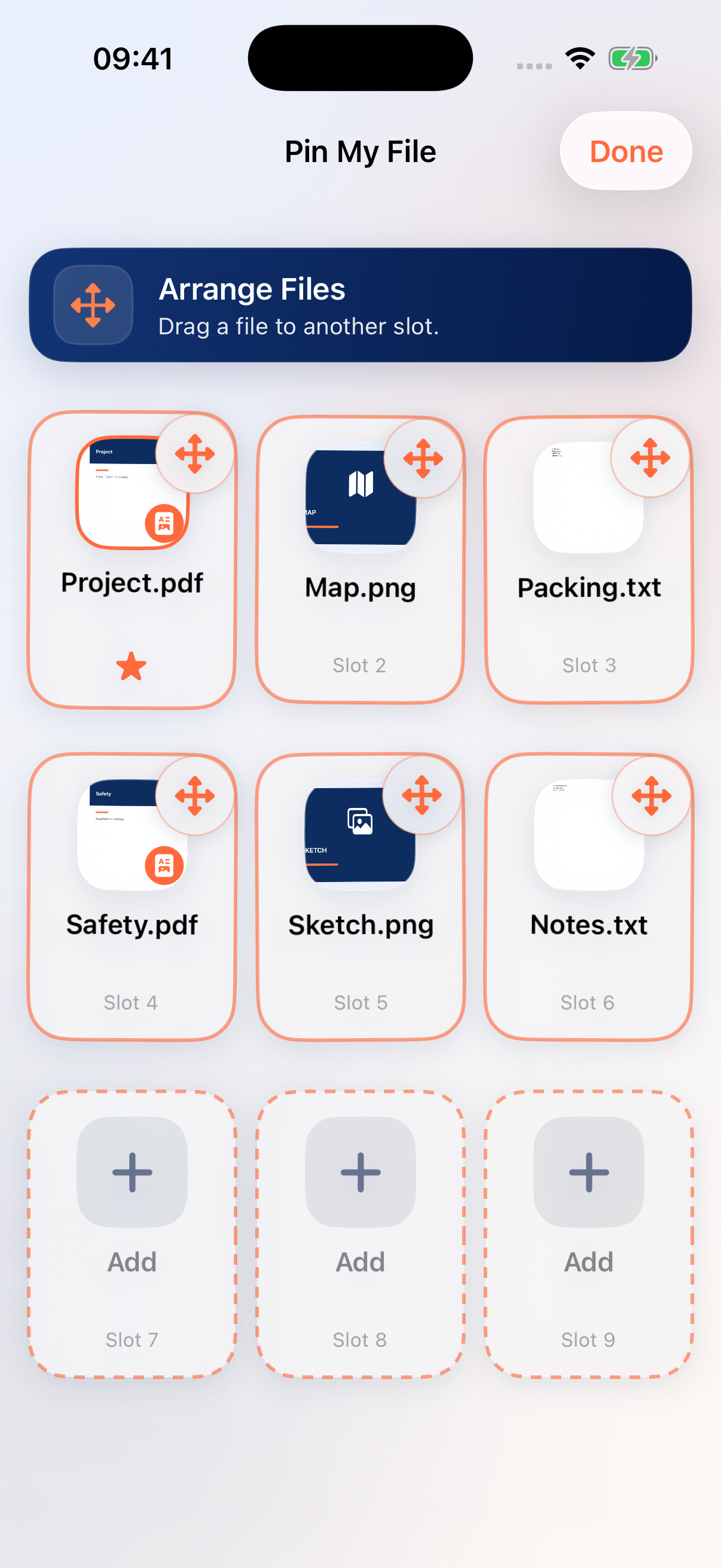
Move or swap
- Empty slot: drag a file onto it to move the file there.
- Occupied slot: drop a file on another file to swap their positions.
Your Auto-Open choice follows the file when you move or swap it. Arranging changes the grid order, not the contents of the document.
Finish arranging
Tap Done to return to normal use. If dragging opens a preview instead, enter Arrange mode first and release your finger before beginning the drag.
If Arrange Files is missing
Check that you have version 1.1 or later and that Full Access is active. If you already purchased it, follow the purchase-restoration steps in the troubleshooting guide.
Keep exploring
Need a hand?
Tell us what you tried, your iOS version and your Pin My File version. Please do not attach private files.
Email support