
Start with the free first slot
You need an iPhone with iOS 17 or later and Pin My File. Auto-Open works with the free first slot. Full Access adds eight more slots and the option to arrange them.
Add the file you want close at hand
Tap an empty slot, choose Choose File and select your document. If it is stored in iCloud Drive or another file provider, let it download first. Pin My File keeps its own local copy.
You can also add a photo, scan or shared item. See the adding-files guide for the other sources.
Choose Open Automatically
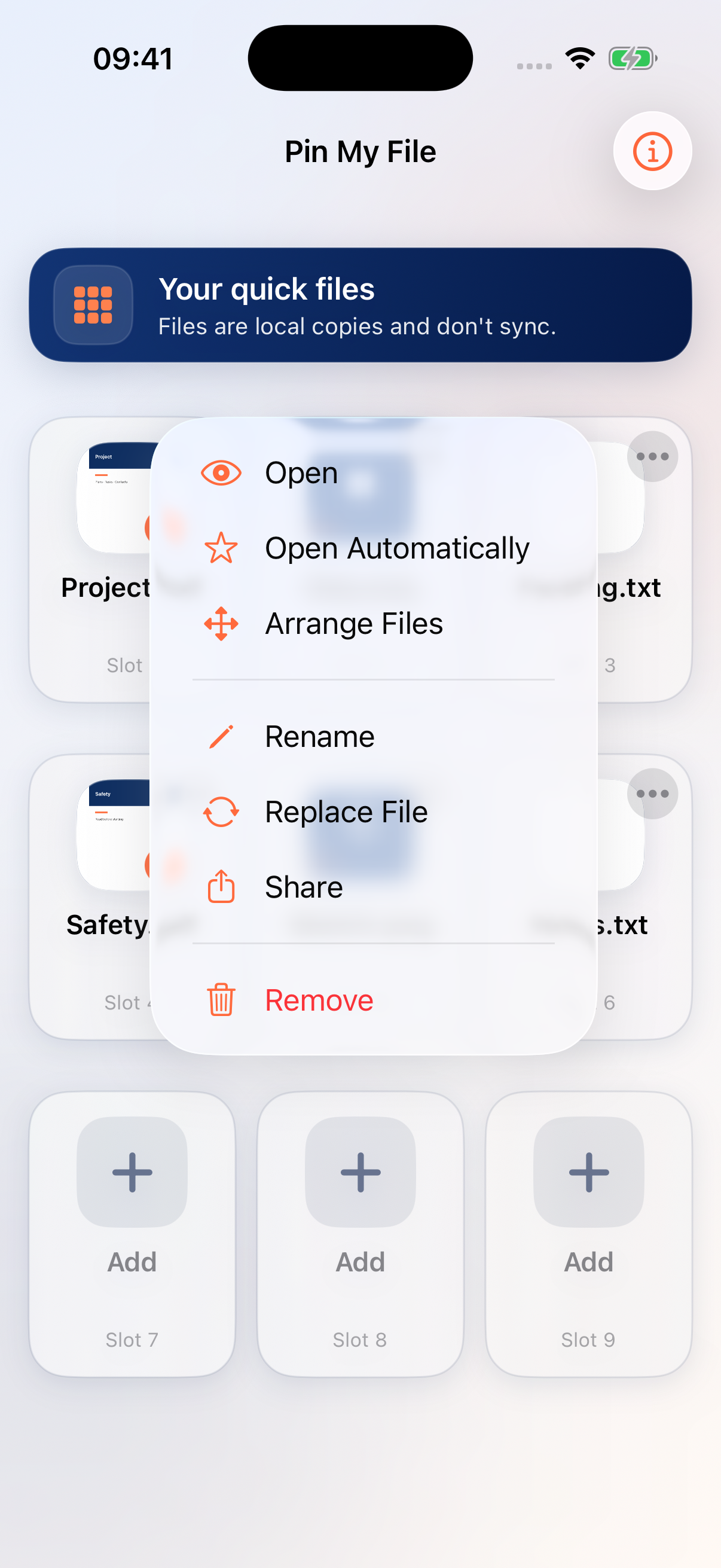
Tap the three-dot options button on the file, then choose Open Automatically. You can also open the file and tap the star in its preview.
Check the selected file
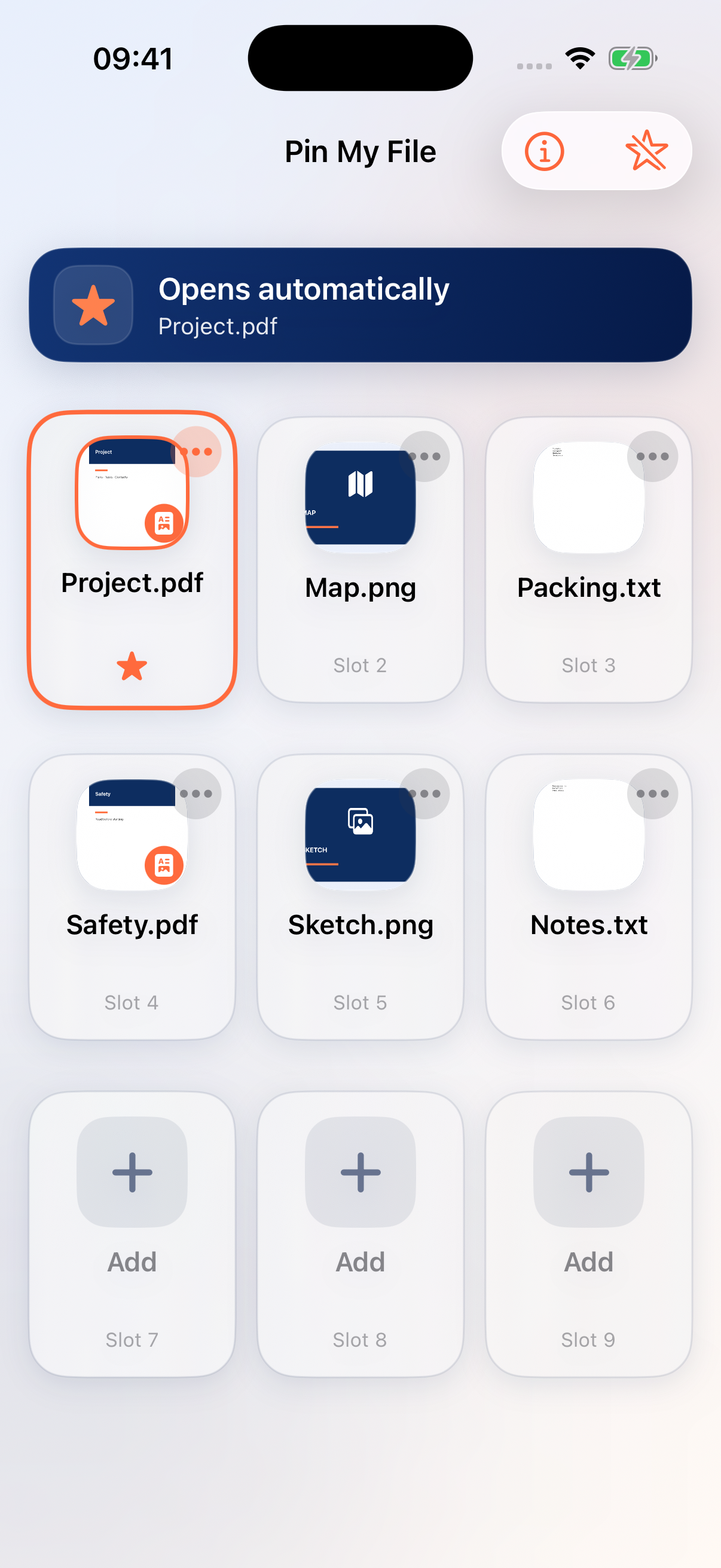
A star marks your file and the banner names the file that opens automatically. Go to your iPhone’s Home Screen, then open Pin My File again. Tap Done in the preview to return to the grid.
Change the choice or switch it off
Choose Open Automatically on another file to change the selection. To stop automatic opening, use Disable Auto-Open at the top of the grid or tap the selected star in the preview.
Open a file with Shortcuts or Siri
In Apple’s Shortcuts app, add Pin My File’s Open Favorite action and choose a saved file. Running the shortcut opens Pin My File and that file. Give your shortcut a name you can also use with Siri.
Keep the right version handy
Only one file opens automatically. A pinned document is a local copy, so changes made to the original elsewhere do not appear here. Use Replace File when you need the updated version.
Keep exploring
Need a hand?
Tell us what you tried, your iOS version and your Pin My File version. Please do not attach private files.
Email support